![Slideform_logo_master-1.png]](https://helpcenter.slideform.co/hs-fs/hubfs/Slideform_logo_master-1.png?width=50&height=50&name=Slideform_logo_master-1.png)
What is the Slideform AI Analyst?
The Slideform AI Analyst helps you analyze business data, generate reusable insights, and turn those insights into client-ready outputs.
Slideform gives you two main ways to work with AI:
AI Chat window for fast, conversational analysis
Assistants for saved, reusable workflows
Both can analyze connected data, work with uploaded files, and generate outputs like text, tables, charts, and other artifacts. The difference is how persistent and repeatable you want the workflow to be.
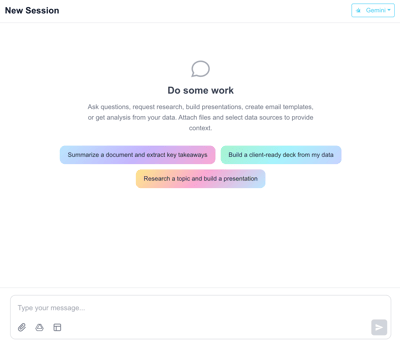
Slideform AI Chat window
Use the chat interface when you want to:
- ask a quick question about your data
- explore ideas before saving anything
- refine a result through follow-up prompts
- work interactively with prior chat results and artifacts
- test a chart, summary, or table before turning it into a reusable asset
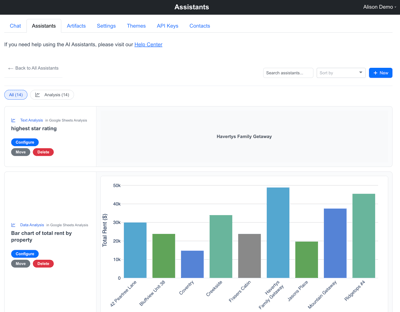
Slideform AI Assistant window
Create an Assistant when you want to:
- save a prompt and its setup for later reuse
- generate a specific chart or insight repeatedly
- work from selected data sources or attachments
- organize outputs with names, tags, and saved insights
- reuse the result in projects and scheduled reporting workflows
Use the AI Analyst Chat for one-time analysis and results
If you are new to Slideform, start with chat first.
1. Open the AI Chat window.
2. Add the data or files you want the AI to use.
3. Ask a clear business question.
4. Review the output.
5. If the result is something you will want again, recreate or save it as an Assistant workflow.
You can also select the AI model to use in the upper right corner.
Use the AI Assistant for repeatable dynamic insights and results
1. Choose the Assistants tab and click New.
2. Choose the assistant type.
Depending on your use case, Slideform supports multiple assistant types, including:
- Data Analysis
- Automation
- Email Template
- Presentation Template
For data-driven reporting, the most common starting point is the Data Analysis Assistant.
3. How to Build a Data Analysis Assistant
Recommended first use cases
If you want a practical place to start, try one of these:
- summarize this month’s KPI changes
- build a chart from CRM data
- create a table of top customers by revenue
- analyze an uploaded spreadsheet and write the top three takeaways
- rebuild a dashboard visual with your own branding