---
title: How to Create a Slide Deck Template
description: A slide deck template is a repeatable presentation with placeholders for content you will pull in from other sources. It specifies the colors, formatting, and layout you want in the presentation.
---
[Skip to content](https://helpcenter.slideform.co/how-to-create-a-slide-deck-template#main-content)
English
Show submenu for translations
![Slideform\_logo\_master-1.png\]](https://helpcenter.slideform.co/hs-fs/hubfs/Slideform_logo_master-1.png?width=50&height=50&name=Slideform_logo_master-1.png)
- [Home](https://slideform.co/index.html)
- [Integrations](https://slideform.co/integrations.html)
- [Pricing](https://slideform.co/solutions.html)
- [Blog](https://slideform.co/blog/)
- [Log In](https://app.slideform.co/)
Open main navigation
Close main navigation
- [Home](https://slideform.co/index.html)
- [Integrations](https://slideform.co/integrations.html)
- [Pricing](https://slideform.co/solutions.html)
- [Blog](https://slideform.co/blog/)
- [Log In](https://app.slideform.co/)
- English
Show submenu for translations
- [Go to slideform.co](http://slideform.co/)
[Go to slideform.co](http://slideform.co/?hsLang=en)
How can we help you?
- There are no suggestions because the search field is empty.
1. [Slideform Help Center](https://helpcenter.slideform.co/?hsLang=en)
2. [Templates](https://helpcenter.slideform.co/templates?hsLang=en)
3. [Create a template](https://helpcenter.slideform.co/templates?hsLang=en#create-a-template)
# How to Create a Slide Deck Template
## A template is a repeatable presentation with placeholders for content you will pull in from other sources. It specifies the colors, formatting, and layout you want in the presentation.
### Automated Method:
### 1. Start the New Project Wizard
Navigate to **Projects \> New Project** to launch the guided setup.
- **Project Type:** Select "Presentation."
- **Project Basics:** Enter a name and description for your new reporting project.
### 2. Upload Your Existing Deck
In the **Select Template** step, upload your PowerPoint (.pptx) or Google Slides file.
### 3. Use Auto-Templatization
Since your previous report likely contains static data rather than placeholders, the wizard will detect the lack of pragmas and offer to auto-templatize the file.
1. **Select Content Types:** Choose which elements you want the AI to convert into placeholders. Options include:
- Charts & Images
- Metrics & Numbers
- Dates
- Names & Entities
- Logos
2. **AI Processing:** The AI will analyze each slide and identify content to replace.
3. **Review Replacements:** You will see a summary of the changes (e.g., "Chart → `{{chart:sales}}`" or "2024 →`{{fn:year}}`").
4. **Confirm:** Click **"Use This Template"** to accept the AI-generated version.
### Manual Method:
If you prefer to maintain manual control, you can skip the auto-templatization and manually add **Pragmas** (e.g., `{{kpi:metric_name}}` or `{{chart:chart_name}}`) directly into the PowerPoint or Google Slides file before uploading it to the project.
### **Tips for creating placeholders:**
- **Charts**: Create a shape on the slide to hold the chart, then double-click inside the shape and type in the placeholder, like `{{chart: name}}`.
- **Images:** Create a shape on the slide to hold the image. Note you can use any shape, not just a rectangle and auto-crop the image to the shape. Double-click inside the shape and type in the placeholder, like `{{image: name}}`
- **Data tables**: Just like charts and images, create a shape on the slide to hold the table, then double-click inside the shape and type in the placeholder, like `{{data: table_name}}`
- **Text, numbers, KPIs**: Create a text placeholder with the font, size, and color that you want in the output.
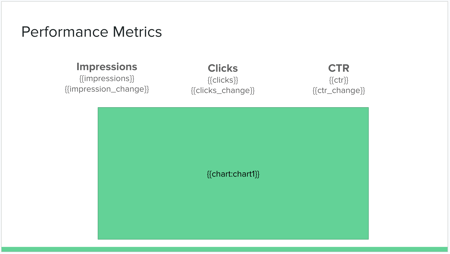
**Note:** Avoid spaces at the beginning or end of the pragma, such as `{{ chart:name }}`
Contact us at support@slideform.co for help 😀
- [Getting started](https://helpcenter.slideform.co/getting-started?hsLang=en#main-content)
- [Pull data from a Dashboard](https://helpcenter.slideform.co/getting-started?hsLang=en#pull-data-from-a-dashboard)
- [Pull data from a Spreadsheet](https://helpcenter.slideform.co/getting-started?hsLang=en#pull-data-from-a-spreadsheet)
- [Pull data from a CRM](https://helpcenter.slideform.co/getting-started?hsLang=en#pull-data-from-a-crm)
- [Pull data from a Database](https://helpcenter.slideform.co/getting-started?hsLang=en#pull-data-from-a-database)
- [Data Sources](https://helpcenter.slideform.co/data-sources?hsLang=en#main-content)
- [Data Source Setup](https://helpcenter.slideform.co/data-sources?hsLang=en#data-source-setup)
- [Advanced Data Source Configuration](https://helpcenter.slideform.co/data-sources?hsLang=en#advanced-data-source-configuration)
- [Templates](https://helpcenter.slideform.co/templates?hsLang=en#main-content)
- [Create a template](https://helpcenter.slideform.co/templates?hsLang=en#create-a-template)
- [Manage templates](https://helpcenter.slideform.co/templates?hsLang=en#manage-templates)
- [Projects](https://helpcenter.slideform.co/projects?hsLang=en#main-content)
- [Output Settings](https://helpcenter.slideform.co/projects?hsLang=en#output-settings)
- [Bulk Mode](https://helpcenter.slideform.co/projects?hsLang=en#bulk-mode)
- [Account](https://helpcenter.slideform.co/account?hsLang=en#main-content)
- [Personal account settings](https://helpcenter.slideform.co/account?hsLang=en#personal-account-settings)
- [Admin settings](https://helpcenter.slideform.co/account?hsLang=en#admin-settings)
- [AI Analyst](https://helpcenter.slideform.co/ai-analyst?hsLang=en)
- [Home](https://slideform.co/index.html)
- [Blog](https://slideform.co/blog/)
- [Help Center](https://helpcenter.slideform.co/)
- [Security](https://trust.slideform.co/)
- [Terms of Service](https://slideform.co/terms.html)
- [Privacy](https://slideform.co/privacy.html)
[](https://slideform.co?hsLang=en)
slideform.co Help Center
Copyright © 2025, Slideform Inc.