![Slideform_logo_master-1.png]](https://helpcenter.slideform.co/hs-fs/hubfs/Slideform_logo_master-1.png?width=50&height=50&name=Slideform_logo_master-1.png)
Use Slideform's AI Assistant to design a branded email layout and define where metrics and insights should appear.
1. Visit AI Assistants on the main menu and click New Assistant
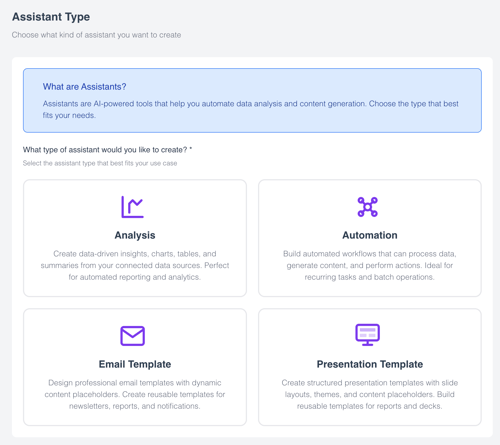
2. Select Email Template
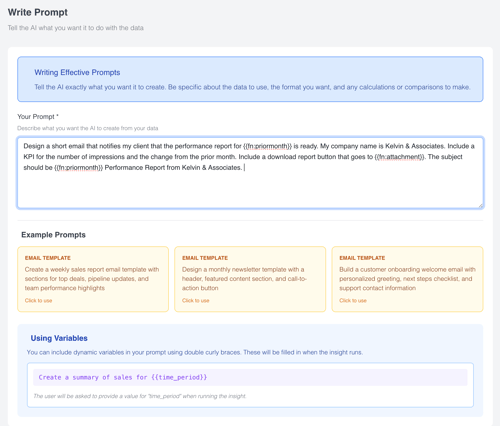
3. Enter a prompt describing the email you want to create. Include details about the placeholders (pragmas) to include. You can include charts, tables, images, logos, and data fields.
4. Enter a name for the email template. Then click Save and Test Insight.
Colors and Branding: You may set up an email branding profile in the AI Assistant Settings. This allows more specific control over layout, branding, fonts and colors.
5. In the next screen you can review and edit your prompt, email branding settings, AI model, and other information. Click Test to generate the email template.
6. The AI results are provided along with a preview of your new email template. 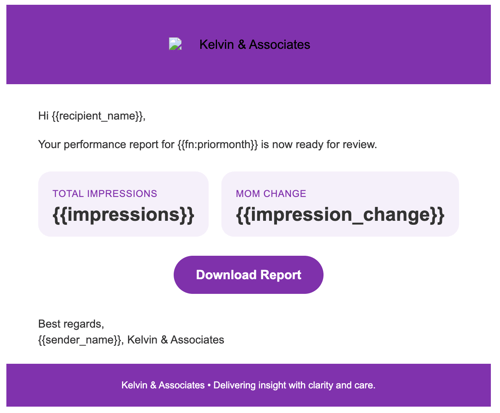
If you want to make changes, you may edit the prompt directly and click Start Over.
7. To save and use the email template in Slideform, go back to the All Assistants page and click Save. Choose Save to Slideform from the dropdown. This saves the template to your AI Artifacts library.
To use this email template as a notification email for an existing Slideform project, see How to create a custom notification email
8. To use this email template as a standalone project. Go to New Project and select Email as the project type. Select your email template and you're ready to use the template!
For assistance, contact support@slidedform.co