![Slideform_logo_master-1.png]](https://helpcenter.slideform.co/hs-fs/hubfs/Slideform_logo_master-1.png?width=50&height=50&name=Slideform_logo_master-1.png)
1. Initial Setup
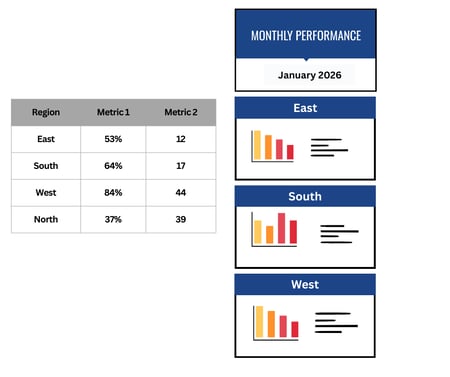
Follow the Quick-start Guide to 1) connect your spreadsheet, 2) upload a slide deck template, and 3) match data to the template. It is a good idea to test the automation a few times (using the Generate button) to ensure that the template is filled in correctly.
2. Generate slides with Bulk Mode
Here's a video walkthrough -
Click Bulk Mode on the project card.
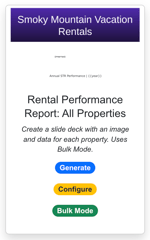
The Bulk Mode page walks you through several steps.
1. Set Output Mode

Use this toggle to select between creating separate slide decks for each row or collating the slide results into a single presentation deck. Click the toggle to Single Presentation Mode, as shown above.
2. Select the source of the submissions: Spreadsheet

3. Select the data source, then select the worksheet
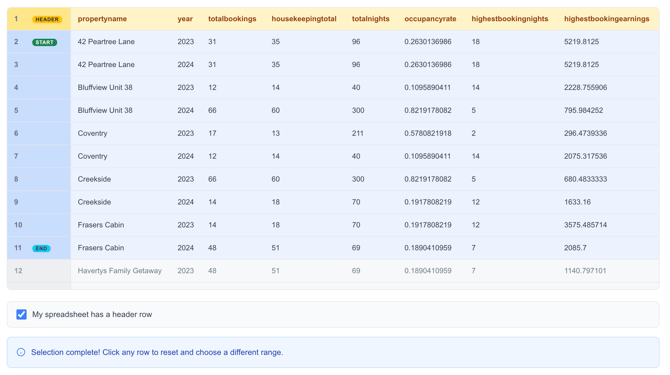
4. Set the header row and select the rows to run. In the spreadsheet preview, select the header row. Then click to select the range of rows that you want to use to create slides.
For example, I selected rows 2 -11 to create slides for a selection of the rental properties in my sheet.
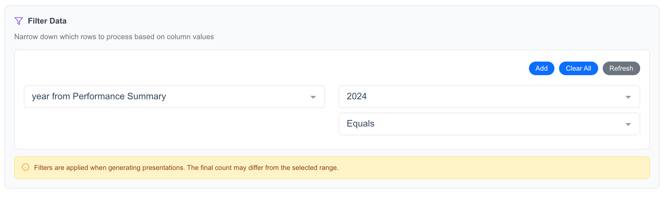
5. Set filters (optional). Further refine the rows that will create slides with filters.
In this example, I want to create slides for the year 2024 only. Filtering by year will limit the row selection shown above to only those rows where year = 2024.
6. Column mapping. Match each column in the data sheet to the appropriate placeholder (pragma) in the slide template. Columns that match the template are automatically mapped for you. If a data column is not used in the slide deck, just leave the pragma section blank.
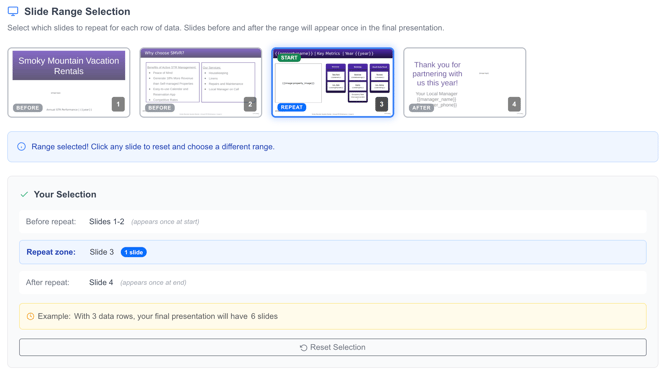
7. Select the slides to repeat.
In this section you will see a preview of your template. You can set one slide, or a range of slides, to repeat. Click to select the first slide to repeat, then click again to set the end of the repeating section.
In this example, I want to repeat slide 3 for each property. Below is the selection for that scenario.
Save Configuration for future use (optional). Click Save Configuration and enter a name for this job. Saving the submission allows you to pull in the same filter settings when you want to run this bulk job again.
8. Create Presentation. Click Create Presentation to generate the deck. The results will be available in the Results section on the Slideform app.