![Slideform_logo_master-1.png]](https://helpcenter.slideform.co/hs-fs/hubfs/Slideform_logo_master-1.png?width=50&height=50&name=Slideform_logo_master-1.png)
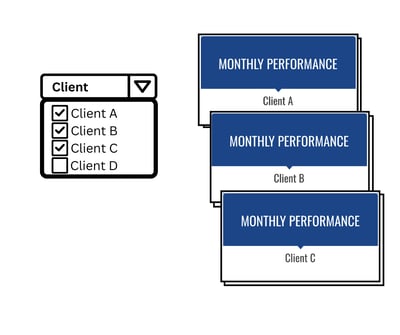
1. Initial Setup
Follow the Quick-start Guide to 1) connect your dashboard, 2) upload a slide deck template, and 3) match data to the template. It is a good idea to test the automation a few times (using the Generate button) with different filter values to ensure that the output is as desired.
2. Generate decks with Bulk Mode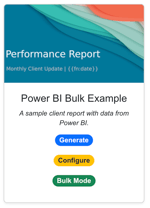
Click Bulk Mode on the project card.
The Bulk Mode page walks you through several steps.
1. Set Output Mode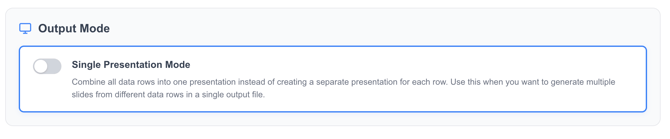 Use this toggle to select between creating separate slide decks for each filter value or collating the slide results into a single presentation deck. Defaults to separate decks, as shown above.
2. Select the source of the submissions: Spreadsheet or Datasource (Dashboard) Filter.

3. Select the data source, worksheet, and filter.
Note: You can only use one filter from the dashboard. If you need to set different filter combinations (such as year, category, and region), use the "Spreadsheet" option to define and run the filter combinations.
4. Select the filter values to run. Choose one or more filter values to create a copy of the deck for each filter value.
Option: set separate upload directory and/or email notifications for each filter value. Click Customize on the right side of the filter selection to set these options. Any information entered here will override the project-level settings.
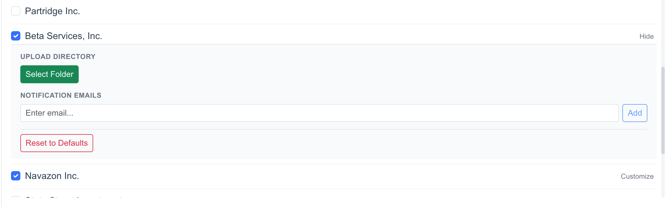
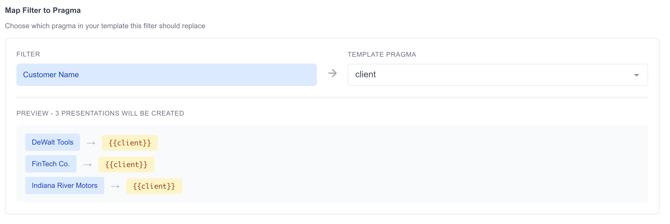
5. Match the filter to the pragma from your template. The example below shows a match between the Customer Name filter on my dashboard to the {{client}} pragma in my slide template.
Set Upload Directory (optional). Send the generated presentations to a Google Drive or OneDrive location.
Set Notification Emails (optional). Send an email when the presentations are complete.
Save Configuration for future use (optional). Click Save Configuration and enter a name for this job. Saving the submission allows you to pull in the same filter settings when you want to run this bulk job again.
6. Create Presentations. Click Create Presentations to generate the decks. The results will be available in the Results section on the Slideform app.